



Blog
Customized USB flash drive with custom drive letter

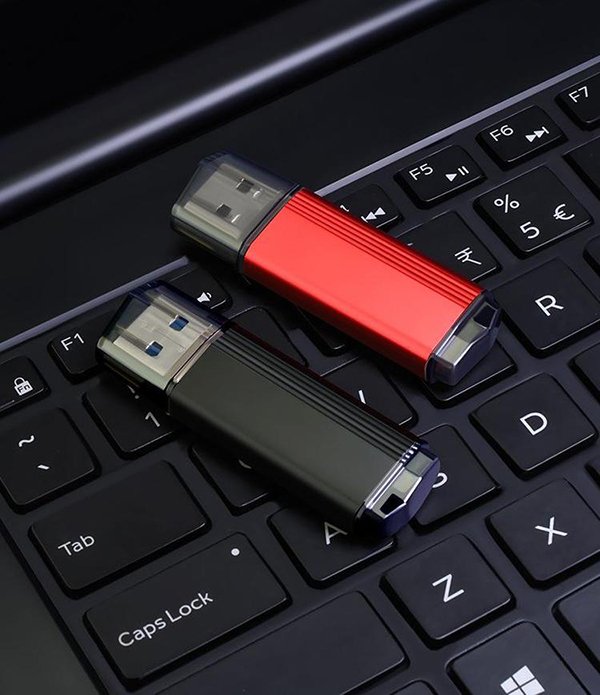
Custom USB Drives with Personalized Drive Letters: A Comprehensive Guide
In today’s digital age, USB drives are more than just storage tools—they’re opportunities for branding, personalization, and functional innovation. One unique way to stand out is by customizing the drive letter assigned to your USB device. This guide explores how to achieve this, the benefits it offers, and the technical considerations involved.
Why Customize Your USB Drive Letter?
Assigning a specific drive letter to your USB device can streamline workflows and enhance user experience. For businesses, it allows employees to quickly identify company-issued drives amidst others. For individuals, it adds a layer of personalization, making the device feel uniquely theirs. Imagine plugging in a USB and seeing it labeled with your initials or a memorable symbol instead of a generic letter like “E” or “F.”
This customization also reduces confusion in environments where multiple USB drives are used simultaneously, such as classrooms, offices, or creative studios. By assigning distinct letters, users can avoid accidental overwrites or mismanagement of data.
How to Assign a Custom Drive Letter
The process of customizing a USB drive’s letter is straightforward and doesn’t require advanced technical skills. Here’s a step-by-step approach:
- Access Disk Management
On Windows, open the Start menu, type “Disk Management,” and select the utility. This tool displays all connected storage devices, including your USB drive. - Locate Your USB Drive
Identify your device in the list of disks. Ensure it’s the correct one by checking its size or label to avoid modifying the wrong drive. - Change the Drive Letter
Right-click the USB partition and select “Change Drive Letter and Paths.” Click “Change,” choose a new letter from the dropdown menu, and confirm. The change takes effect immediately upon ejection and reinsertion.
For macOS or Linux users, drive letters aren’t assigned in the same way, but you can create symbolic links or mount points to achieve a similar organizational effect.
Design Considerations for Custom USB Drives
Beyond drive letters, the physical design of your USB device plays a crucial role in its impact. Consider the following elements to create a cohesive and functional product:
Shape and Size
Opt for a form factor that aligns with your purpose. Compact designs are ideal for portability, while larger, ergonomic shapes may suit promotional giveaways or branded merchandise.
Material and Durability
Choose materials that reflect your brand’s values. Metal casings convey professionalism, while rubberized finishes offer durability for everyday use.
Color and Branding
Incorporate colors that match your logo or theme. Laser engraving or full-color printing can add logos, slogans, or artwork, turning the USB into a memorable marketing tool.
Practical Uses for Customized USB Drives
Customized USB drives with personalized drive letters serve various purposes across industries and scenarios:
Corporate Branding
Businesses can distribute USB drives preloaded with marketing materials, software, or training resources. A custom drive letter ensures recipients easily locate the device among others.
Educational Institutions
Schools and universities can assign specific letters to USB drives used for coursework or shared resources, reducing confusion in computer labs or libraries.
Creative Projects
Photographers, videographers, and designers can label USB drives with project names or client initials, keeping files organized during collaborations or client deliveries.
By combining custom drive letters with thoughtful design, your USB device becomes more than a storage tool—it’s a statement of identity and efficiency. Whether for personal use, corporate branding, or creative projects, this level of customization elevates the humble USB drive into a powerful asset.