



Blog
Customized read-only file USB flash drive

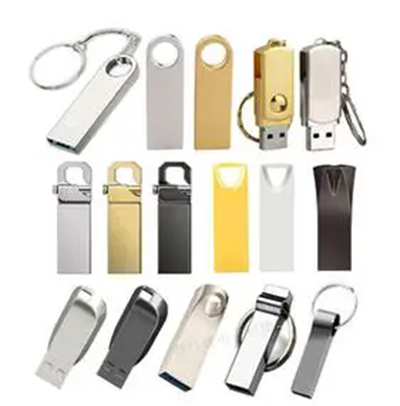
Custom Read-Only USB Drives: Ensuring Data Integrity and Controlled Access for Specialized Use Cases
Customizing a USB drive to function as a read-only device provides a secure way to distribute files without risking accidental modification, deletion, or unauthorized changes. This approach is ideal for sharing important documents, software installations, or multimedia content that must remain unchanged. By restricting write access, read-only USB drives maintain data integrity, making them valuable tools for businesses, educators, and organizations needing reliable content delivery. Below, we explore the key steps and considerations for creating a customized read-only USB solution.
Understanding Read-Only Functionality and Its Benefits
A read-only USB drive prevents users from altering, adding, or deleting files stored on it. This restriction ensures the original content remains intact, regardless of the device or operating system used to access the drive. For businesses, this means distributing software, training materials, or legal documents without worrying about unintended edits. Educators can share lesson plans, videos, or reference materials that students cannot accidentally corrupt, preserving consistency across multiple uses.
Read-only drives also protect against malware and unauthorized software installations. Since files cannot be written to the drive, malicious programs cannot embed themselves or spread to other devices. This makes read-only USB drives safer for use in public or shared environments, such as libraries, conference centers, or customer service kiosks, where multiple users interact with the same hardware.
Another advantage is longevity. By preventing write operations, read-only drives experience less wear and tear on their memory cells, potentially extending their lifespan compared to standard writable drives. This durability is particularly beneficial for archival purposes, where data must remain accessible for years without degradation.
Methods to Create a Read-Only USB Drive
There are several ways to configure a USB drive as read-only, depending on the level of control and technical expertise required. One common approach involves using hardware-based write-protection switches, which are physical toggles found on some USB drives. When activated, these switches block all write operations, rendering the drive read-only until the switch is flipped back. This method is straightforward and requires no software, making it accessible to users of all skill levels.
For drives without physical switches, software-based solutions offer an alternative. On Windows, the diskpart command-line tool can be used to modify a drive’s attributes, enabling write protection. By opening Command Prompt as an administrator and entering specific commands, users can toggle the read-only status of a USB drive. This method provides flexibility but requires familiarity with command-line interfaces.
Mac and Linux users can achieve similar results using terminal commands or disk utility tools. For example, on macOS, the diskutil command can adjust partition permissions, while Linux users might employ mount options to restrict write access. These methods are effective but may vary slightly depending on the operating system version or distribution.
Ensuring Compatibility Across Different Operating Systems
A read-only USB drive must function reliably on all target platforms, whether Windows, macOS, or Linux. To ensure compatibility, start by formatting the drive with a universally supported file system, such as FAT32 or exFAT. These formats are recognized by most operating systems without additional software, reducing the risk of access issues.
When using software-based write protection, test the drive on multiple devices to confirm that the restrictions hold across platforms. Some methods, like diskpart on Windows, may not translate directly to other operating systems, so alternative approaches might be needed for cross-platform use. For instance, a drive configured as read-only on Windows using diskpart might still be writable on a Mac unless additional steps are taken to lock it down.
Consider the behavior of the drive when inserted into different systems. Some operating systems may prompt users to format the drive if they detect an unfamiliar file system or partition structure, even if the drive is read-only. To avoid confusion, include a text file on the drive explaining its purpose and instructions for accessing the content without attempting modifications.
Customizing Content Delivery with Read-Only Drives
Read-only USB drives excel at delivering consistent, unchangeable content to diverse audiences. For businesses, this might involve distributing software installers, product catalogs, or marketing materials that must remain identical across all copies. By ensuring every drive contains the exact same files, companies can maintain brand consistency and avoid version control issues.
Educators can use read-only drives to share course materials, such as lecture slides, lab instructions, or reference texts, without worrying about students accidentally editing or deleting critical information. This setup also simplifies updates, as new versions of the content can be distributed on fresh read-only drives, replacing older ones without confusion.
In creative industries, read-only drives can distribute asset libraries, such as fonts, stock images, or sound effects, that must remain unaltered to comply with licensing agreements. Musicians or filmmakers might use these drives to share project files with collaborators, ensuring everyone works from the same source material without risking discrepancies.
By leveraging read-only functionality, custom USB drives become powerful tools for controlled content delivery, data protection, and long-term reliability. Whether for corporate, educational, or creative applications, these drives provide a secure, consistent way to share information without compromising integrity or accessibility.