



Blog
Hidden partition custom USB flash drive customization

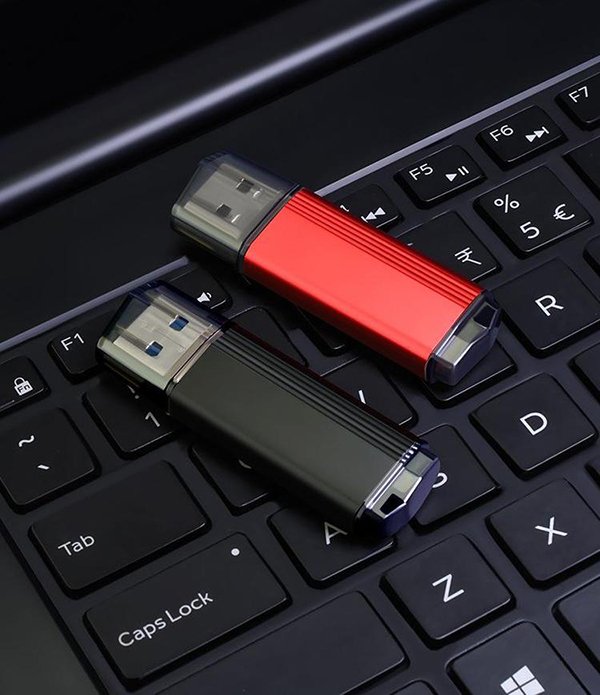
Custom USB Drives with Hidden Partitions: Enhancing Security and Organization for Specialized Needs
Creating a USB drive with a hidden partition allows users to segregate sensitive data from publicly accessible files, adding a layer of security and organization. This approach is particularly useful for professionals handling confidential information, educators distributing materials with restricted content, or individuals seeking to protect personal files. By dividing the drive into visible and concealed sections, users can control access to specific data without compromising convenience. Below, we explore the essential steps and considerations for designing a USB drive with a hidden partition.
Planning Partition Layout and Storage Allocation
The first step in customizing a USB drive with a hidden partition is determining how to divide its storage space. Start by assessing the types of files you intend to store. For example, if the drive will hold both work documents and personal photos, allocate a larger portion to the visible partition for everyday use and reserve a smaller, hidden section for sensitive files. This balance ensures the drive remains functional while protecting critical data.
Consider the total capacity of the USB drive when planning partitions. Larger drives (e.g., 64GB or higher) offer more flexibility, allowing for spacious visible and hidden sections. Smaller drives may require prioritizing one partition over the other, depending on usage needs. For instance, a drive used primarily for secure backups might dedicate most of its space to the hidden partition, while one meant for sharing non-sensitive files could focus on the visible area.
It’s also important to account for file system compatibility. The visible partition should use a widely supported format like FAT32 or exFAT to ensure cross-platform accessibility. The hidden partition, however, can use a more secure format such as NTFS or EXT4, especially if it will only be accessed on specific operating systems. This setup balances usability with security, catering to diverse user environments.
Creating and Concealing the Partition Using Disk Management Tools
To create a hidden partition, you’ll need disk management software capable of manipulating USB drive structures. Tools like GParted (for Linux) or third-party utilities for Windows and macOS allow users to shrink existing partitions, create new ones, and toggle their visibility. Begin by backing up all data on the drive, as partitioning processes can erase existing files.
Once the drive is connected, open management tool and locate it in the list of storage devices. Select the partition you wish to modify—typically the entire drive if it’s blank—and choose to resize it. Reduce its size by the amount you want to allocate to the hidden partition, leaving the remaining space for the visible section. After resizing, create a new partition in the unallocated space, assigning it a file system that suits your security needs.
To hide the newly created partition, use the software’s “hide” or “remove drive letter” feature (depending on the tool). This prevents the partition from appearing in file explorers or disk utilities, making it invisible to casual users. On Windows, you can also use the diskpart command-line tool to remove drive letters from partitions, achieving a similar effect without graphical interfaces.
Accessing and Managing the Hidden Partition Securely
Accessing the hidden partition requires knowledge of the tools or commands used to conceal it. For users familiar with disk management software, reopening the utility and assigning a drive letter or mounting the partition will make it visible temporarily. This approach is ideal for occasional access, as the partition remains hidden by default.
For added security, consider encrypting the hidden partition using tools like VeraCrypt or BitLocker. Encryption ensures that even if the partition is discovered, its contents remain unreadable without the correct password or keyfile. When setting up encryption, choose a strong, unique passphrase and store it securely, as losing it will render the data inaccessible.
Regularly backing up the hidden partition is crucial, especially if it contains irreplaceable files. Since the partition isn’t visible during normal use, users might forget to include it in routine backups. Schedule periodic checks to ensure the hidden data is copied to another secure location, such as an encrypted external hard drive or cloud storage service with strong privacy controls.
Customizing Visibility for Different User Scenarios
The ability to toggle the hidden partition’s visibility makes USB drives with concealed sections versatile for various use cases. For example, a journalist carrying sensitive sources could keep the partition hidden during transit and reveal it only when working on a trusted device. Similarly, educators distributing materials with answer keys or solution guides can hide those files from students while keeping lesson plans visible.
In corporate environments, IT teams can use hidden partitions to distribute software licenses or internal tools without exposing them to all employees. By granting access only to authorized personnel, organizations reduce the risk of unauthorized sharing or misuse. This setup also simplifies updates, as changes can be made to the hidden partition without disrupting the visible content.
For personal use, a hidden partition can serve as a secure vault for financial records, legal documents, or private photos. Users can access these files at home while keeping them concealed when using the drive in public or shared computers. This dual-layer approach to storage provides peace of mind without sacrificing everyday functionality.
By carefully planning partition layouts, using disk management tools to create and conceal sections, securing access with encryption, and customizing visibility for specific scenarios, USB drives with hidden partitions offer a robust solution for protecting and organizing data. Whether for professional, educational, or personal use, these drives combine convenience with security, ensuring sensitive information remains private while remaining easily accessible to authorized users.